# 2. Configuration
# End User Scopes
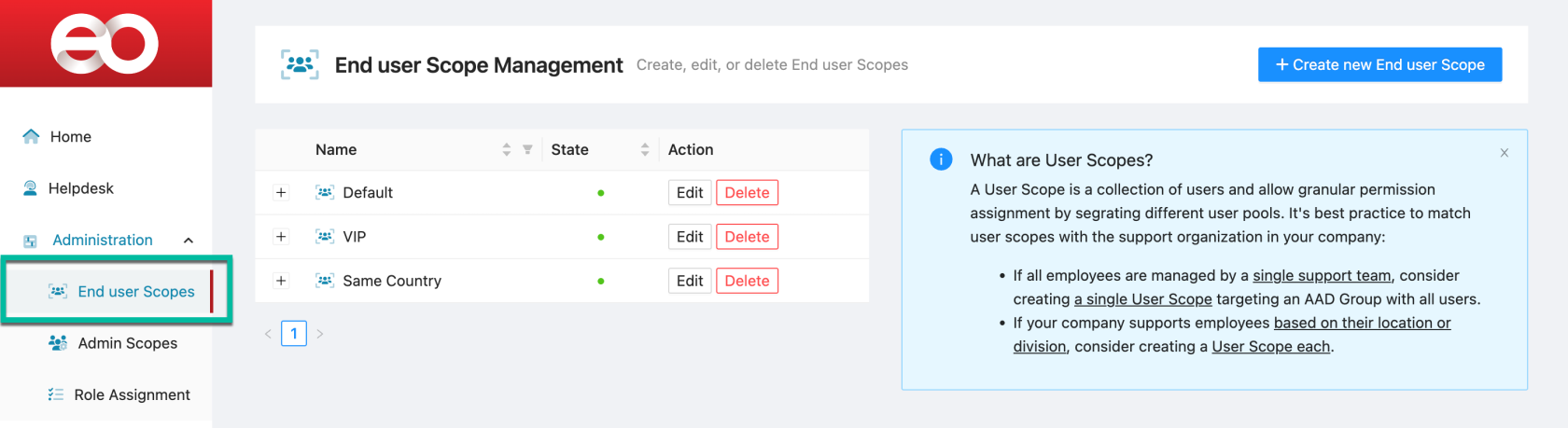
An *End User Scope* is a collection of users that allows EndpointOps the assignment of granular permissions by segregating different user pools. It's best practice to match *end user scopes* with the support organization set up of your company. E.g.:
- If a single helpdesk team supports all employees, consider creating a single *End User Scope* targeting an AAD Group with all users.
- If your company supports employees based on the employee's location or division, consider creating a User Scope for each.
### Required Permissions
*End User Scopes* are created and managed by EndpointOps Administrators.
[](https://kb.endpointops.com/uploads/images/gallery/2023-10/sjdWS5oywzZSwDQY-image.png)
### Types of End User Scopes
EndpointOps supports different types of *End User Scopes* to support a wide range of setups.
[](https://kb.endpointops.com/uploads/images/gallery/2023-10/hzGrPa1Ev4OGXUsM-image.png)
#### Type: User group membership
A simple way to set up *End User Scopes* is relying on an account's membership to an AAD Group, Administrative Unit(AU), or Global Azure Role. When selecting multiple AAD Groups/AUs, the membership of any AAD Group/AU will assign the user to the respective *End User Scope*.
| [](https://kb.endpointops.com/uploads/images/gallery/2023-10/TJLDTBavNHQ107Fy-image.png)
| 1. Type the name of an AAD Group, Administrative Unit, or Global Azure Role
2. Select an entry from the list
3. Selected objects will appear on the right side. Undo the selection with the **Remove** Button
|
#### Type: User/Admin matching attribute
This option is recommended to set up **country-, site-, or division-based** *End User Scope.*
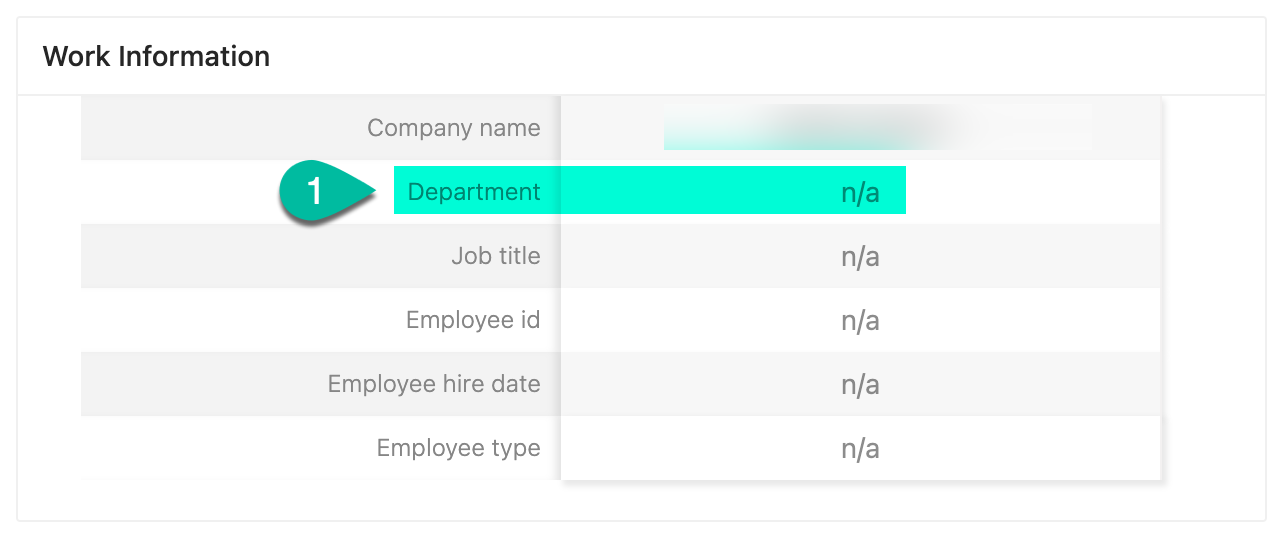
Instead of manually creating an AAD Group, a single "User/Admin matching attribute"-*End User Scope* can be created. Such an *End User Scope* with the configuration of "Country" will dynamically assign the *End User Scope* to a user if the Helpdesk supporter's country property matches the end user's country property. Supported properties are Department, Country, State, City, and Postal code.
The Azure Active Directory Account properties are used for this assignment:
| [](https://kb.endpointops.com/uploads/images/gallery/2023-10/9i1uGSM5vnuJ9M2Z-2023-10-30-14-26-44.png)
| On EndpointOps: Helpdesk> Search for a user > AAD Account Information:
[](https://kb.endpointops.com/uploads/images/gallery/2023-10/cFBQfxFKEDCYC62L-image.png)
[](https://kb.endpointops.com/uploads/images/gallery/2023-10/BFcSw5MLYC0Gd2yu-2023-10-30-14-35-02.png)
On the Azure Portal:
[](https://kb.endpointops.com/uploads/images/gallery/2023-10/NFfcC3jVq0hhJu3u-2023-10-30-14-24-39.png)
|
#### Type: Device Attribute
This option is recommended to set up to assign an *End User Scope* to user-less devices.
When selecting this type, a Query editor will appear.
| [](https://kb.endpointops.com/uploads/images/gallery/2023-11/4bmYqbUNRrZhXOHF-image.png)
| 1. Select one of the device attributes you want to test against. All Intune-device attributes are available from the *ManagedDevice* object, and all Azure-device attributes from the *AzureDevice* attribute. Review the examples for additional guidance. Note the URL at the end of the list for all available attributes.
2. Select the desired *Comparison Operator* to complete your query. Note that you can make your query case insensitive by adding an *\** *character after the operator (eg. attribute ==* 'sOmE vAlUe')
3. You can combine multiple verifications with a logical operator
4. Double-check or complete your query.
5. Verify the validity of your query or review the errors that appear.
Once valid, you can proceed with the *Next* button
|
#### Type: User Attribute
Special use cases may require you to create a user attribute query. When selecting this type, a Query editor will appear.
| [](https://kb.endpointops.com/uploads/images/gallery/2023-11/s1Xd4umc5zoR86Dk-image.png)
| 1. Select one of the user attributes you want to test against. Review the examples for additional guidance. Note the URL at the end of the list for all available attributes.
2. Select the desired *Comparison Operator* to complete your query. Note that you can make your query case insensitive by adding an *\** *character after the operator (eg. attribute ==* 'sOmE vAlUe')
3. You can combine multiple verifications with a logical operator
4. Double-check or complete your query.
5. Verify the validity of your query or review the errors that appear.
Once valid, you can proceed with the *Next* button
|
### End User Scope Properties
The second step of any type of *End User Scope* allows you to set the properties.
| [](https://kb.endpointops.com/uploads/images/gallery/2023-11/ywRObRXABoQJMPyT-image.png) | 1. The **name** of the *End User Scope* is visible to Helpdesk operators when searching for a user or device. Choose a unique and self explanatory name.
2. Users and devices might be members of multiple *End User Scopes*. If the **Priority** of a user's or device's *End User Scope* is elevated, the user will only be part of the *End User Scopes* with the highest priority. Following this logic you can achieve exclusions for special cases. Imagine an *End User Scope* matching all users with the name "Default" and priority of 0, and second *End User Scope* called "VIP users" for a subset of users with a priority of 1 and higher. If a user is associated with the *End User Scope* "VIP users", they will no longer be member of the "Default" *End User scope* due to the elevated priority of the "VIP users" *End User Scope.* Depending on your use case this will allow you to assign different set of permissions to the admin scopes (this could be more permissions, less permissions, or grant specific access to another Admin scope)
3. **Enabled** *End User Scopes* will be used in Endpoint Ops, whereas **Disabled** *End User Scopes are omitted.*
4. Proceed with the **Next** button to Save your *End User Scope*.
|
### Edit or delete End User Scopes
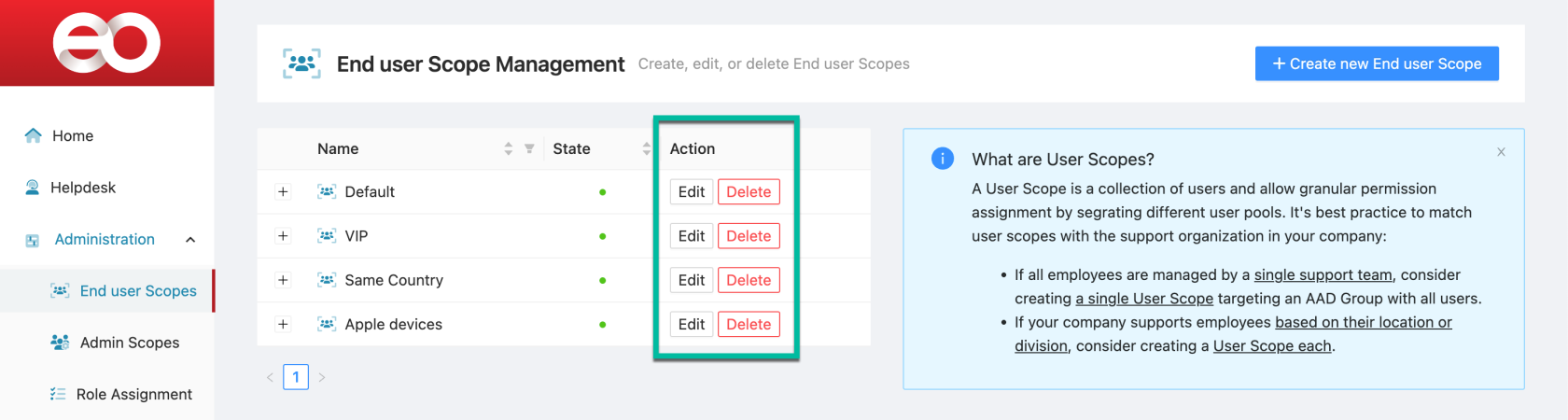
*End User Scopes* can be updated or deleted at any point. Simply use the **Edit** or **Delete** button on the respective *End User Scope.*
[](https://kb.endpointops.com/uploads/images/gallery/2023-11/jwFdDDTkplj50vIh-image.png)
# Admin Scopes
An *Admin Scope* is a collection of administrators and allows granular permission assignment by segregating different user and admin pools. It's best practice to match admin groups with the support organization in your company:
- If your company has a global or unified Support team, consider creating a helpdesk group with non-invasive support permissions and another admin group with higher privileges.
- If your company has support teams based on their location or division, consider creating an Admin Group, each with non-invasive support permissions and another admin group with higher privileges..
### Required Permissions
*Admin Scopes* are created and managed by EndpointOps Administrators.
[](https://kb.endpointops.com/uploads/images/gallery/2023-11/OIhyuNtcGufiQECR-image.png)
### Admin Scope Creation
*Admin Scopes* follow a similar principle to the [End User Scopes](https://kb.endpointops.com/books/2-configuration/page/end-user-scopes "End User Scopes"), but they only support **User group membership** assignments.
| [](https://kb.endpointops.com/uploads/images/gallery/2023-11/J8nEQ5VxatUV0Qxn-image.png) | To create a new *Admin Scope:*
1. Click on **Create new Admin Scope**
2. Type the name of an AAD Group, Administrative Unit, or Global Azure Role. The membership of one of the groups is sufficient to become associated with an *Admin Scope.*
3. Select an entry from the list
4. Selected objects will appear on the right side. Undo the selection with the **Remove** Button
5. Use the **Next** button to proceed with the second step.
|
| [](https://kb.endpointops.com/uploads/images/gallery/2023-11/FpFDnjAOWPj6ZWkf-image.png)
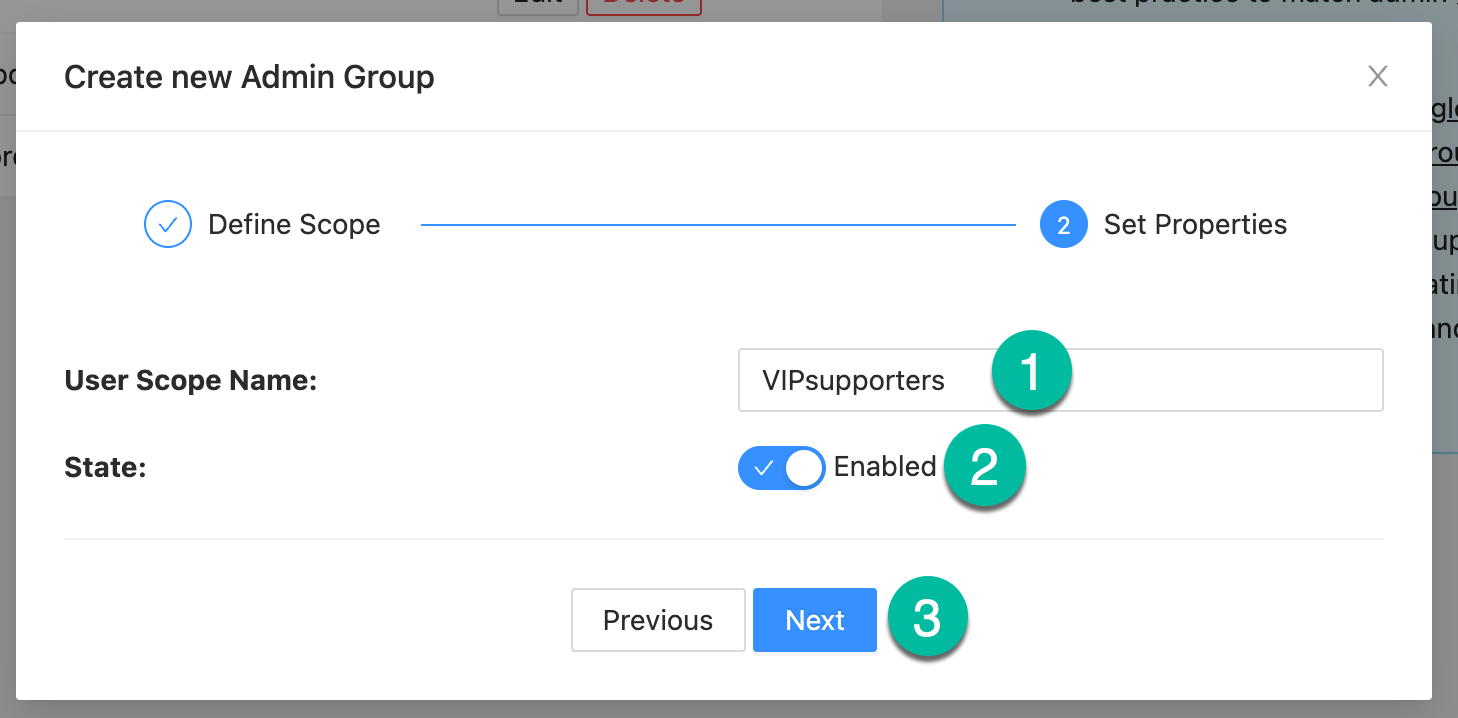
| 1. The **name** of the *Admin Scope* is visible to Helpdesk operators in the [My Access](https://kb.endpointops.com/books/3-helpdesk-role/page/my-access-page "My Access - Page")
2. **Enabled** *Admin Scopes* will be used in Endpoint Ops, whereas **Disabled** *Admin Scopes are omitted.*
3. Proceed with the **Next** button to Save your *Admin Scope*.
|
### Edit or delete Admin Scopes
*Admin Scopes* can be updated or deleted at any point. Simply use the **Edit** or **Delete** button on the respective *Admin Scope.*
[](https://kb.endpointops.com/uploads/images/gallery/2023-11/K5uPSSGBYeo8Z2pq-image.png)
# Role Assignment
Once [End User Scopes](https://kb.endpointops.com/books/2-configuration/page/end-user-scopes "End User Scopes") and [Admin Scopes](https://kb.endpointops.com/books/2-configuration/page/admin-scopes "Admin Scopes") are configured, you can use these entities to assign permissions and allow Admins to perform activities against users.
### Required Permissions
*Role Assignments* are created and managed by EndpointOps Administrators.
[](https://kb.endpointops.com/uploads/images/gallery/2023-11/AB0j2dTgKtQuo50f-image.png)
### App role assignments
App roles allow Administrators and Helpdesk operators to access areas within EndpointOps. Granting *User & Device Permissions* to Helpdesk operators will not have any effect if they don't have the role to access the Helpdesk area.
| [](https://kb.endpointops.com/uploads/images/gallery/2023-11/LSjPty1csIzuoS0m-image.png)
| Click on the slider to assign or un-assign the permission. The vertical axis lists all configured *Admin Sopes*. The horizontal access lists all *App Roles*
1. A red slider means that the permission is un-assigned. ([](https://kb.endpointops.com/uploads/images/gallery/2023-11/yv2M1Jgb3fiJahFE-image.png)or [](https://kb.endpointops.com/uploads/images/gallery/2023-11/zTszGDQ3iz5HePV4-image.png))
2. A green slider means that the permission is assigned.
([](https://kb.endpointops.com/uploads/images/gallery/2023-11/MYfLTUKXubbzCoK4-image.png) or [](https://kb.endpointops.com/uploads/images/gallery/2023-11/9cjGAOBPlDaolZ0D-image.png))
3. A slider is also considered un-assigned/unset if the slider is centered. ([](https://kb.endpointops.com/uploads/images/gallery/2023-11/TLqWpN9OxPYPyeLS-image.png) or [](https://kb.endpointops.com/uploads/images/gallery/2023-11/lVtpNX5VmT6F509A-image.png))
Click on **Save Changes** to persist your modifications.
|
### User & Device Permissions
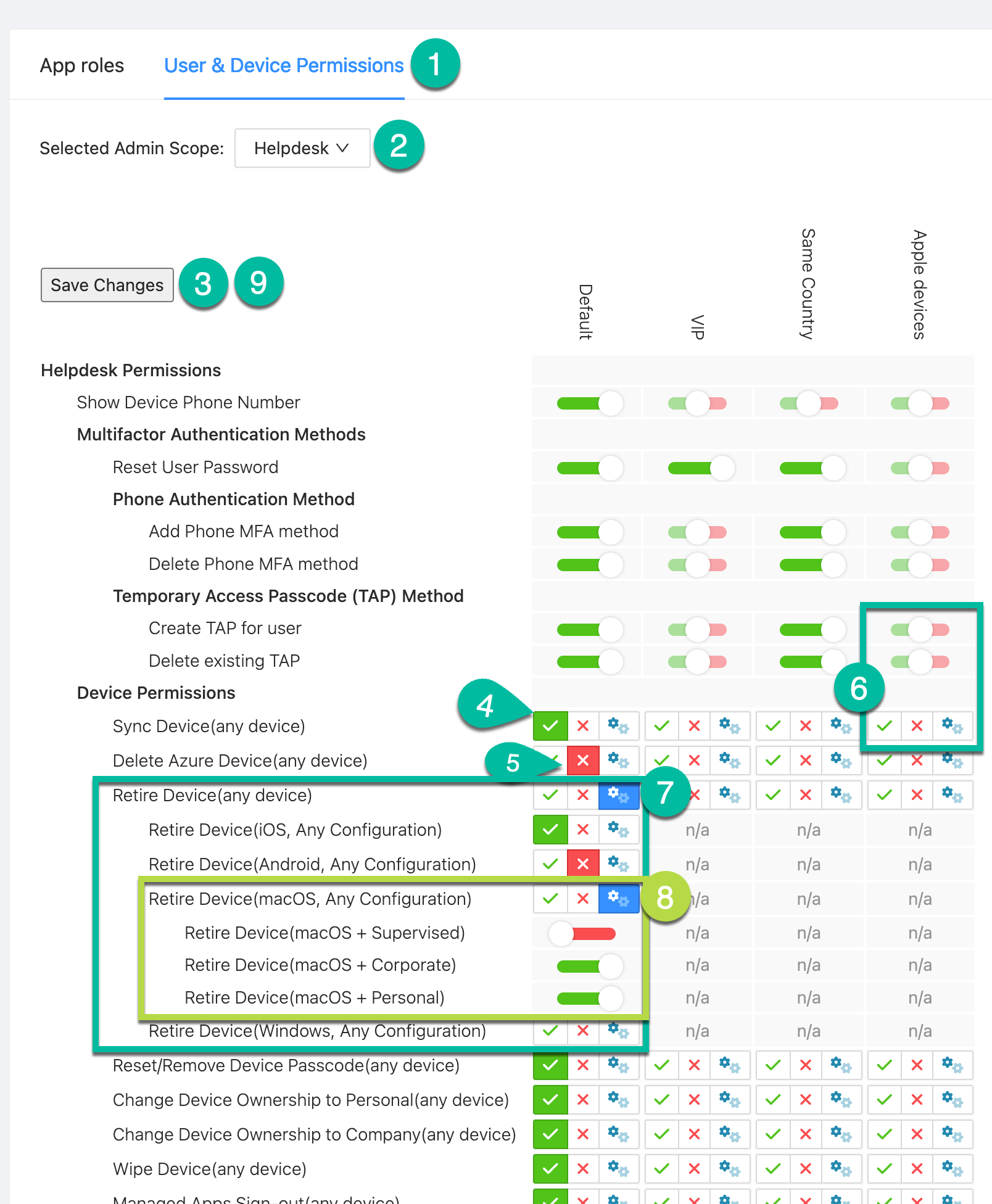
*User & Device Permissions* follow the same principle as the App roles but provide additional granularity.
| [](https://kb.endpointops.com/uploads/images/gallery/2023-11/I3uYJaXlXJ6y2vs3-image.png)
| 1. Switch to the *User & Device Permissions* tab
2. Select the *Admin Scope* you want to view/edit the permission assignment
3. Use the **Edit** button to switch to the editing view
4. A green slider means that the permission is assigned.
([](https://kb.endpointops.com/uploads/images/gallery/2023-11/MYfLTUKXubbzCoK4-image.png) or [](https://kb.endpointops.com/uploads/images/gallery/2023-11/9cjGAOBPlDaolZ0D-image.png))
5. A red slider means that the permission is un-assigned. ([](https://kb.endpointops.com/uploads/images/gallery/2023-11/yv2M1Jgb3fiJahFE-image.png)or [](https://kb.endpointops.com/uploads/images/gallery/2023-11/zTszGDQ3iz5HePV4-image.png))
6. A slider is also considered un-assigned/unset if the slider is centered. ([](https://kb.endpointops.com/uploads/images/gallery/2023-11/TLqWpN9OxPYPyeLS-image.png) or [](https://kb.endpointops.com/uploads/images/gallery/2023-11/lVtpNX5VmT6F509A-image.png))
7. Device actions have an additional **Custom**-setting that allows for additional granularity. The base setting allows the assignment and un-assignment of the device action for "(any device)". Selecting **Custom** will enable 3 extra rows. There, you can assign/un-assign the permission based on the device's operating system (e.g. Allow retirement for iOS devices but prohibit the retirement of Android devices) for a given *Admin Scope* and *End User Scope.*
8. When using the **Custom** setting in a granular setting (like "MacOS, Any Configuration"), you can assign permissions even more granular based on the device's configuration. The three options are *Supervised, corporate-owned devices*, and *personal-owned devices*.
9. Use the **Save Changes** button to persist your modifications.
|