Role Assignment

Once End User Scopes and Admin Scopes are configured, you can use these entities to assign permissions and allow Admins to perform activities against users.

Required Permissions

Role Assignments are created and managed by EndpointOps Administrators.

image.png

App role assignments

App roles allow Administrators and Helpdesk operators to access areas within EndpointOps. Granting User & Device Permissions to Helpdesk operators will not have any effect if they don't have the role to access the Helpdesk area.

image.png

  1. Use the Edit button to switch into the editing view

image.png

Click on the slider to assign or un-assign the permission. The vertical axis lists all configured Admin Sopes. The horizontal access lists all App Roles

  1. A red slider means that the permission is un-assigned.

    (image.pngor image.png)


  2. A green slider means that the permission is assigned.

    (image.png or image.png)

  3. A slider is also considered un-assigned/unset if the slider is centered.

    (image.png or image.png)

Click on Save Changes to persist your modifications.

User & Device Permissions

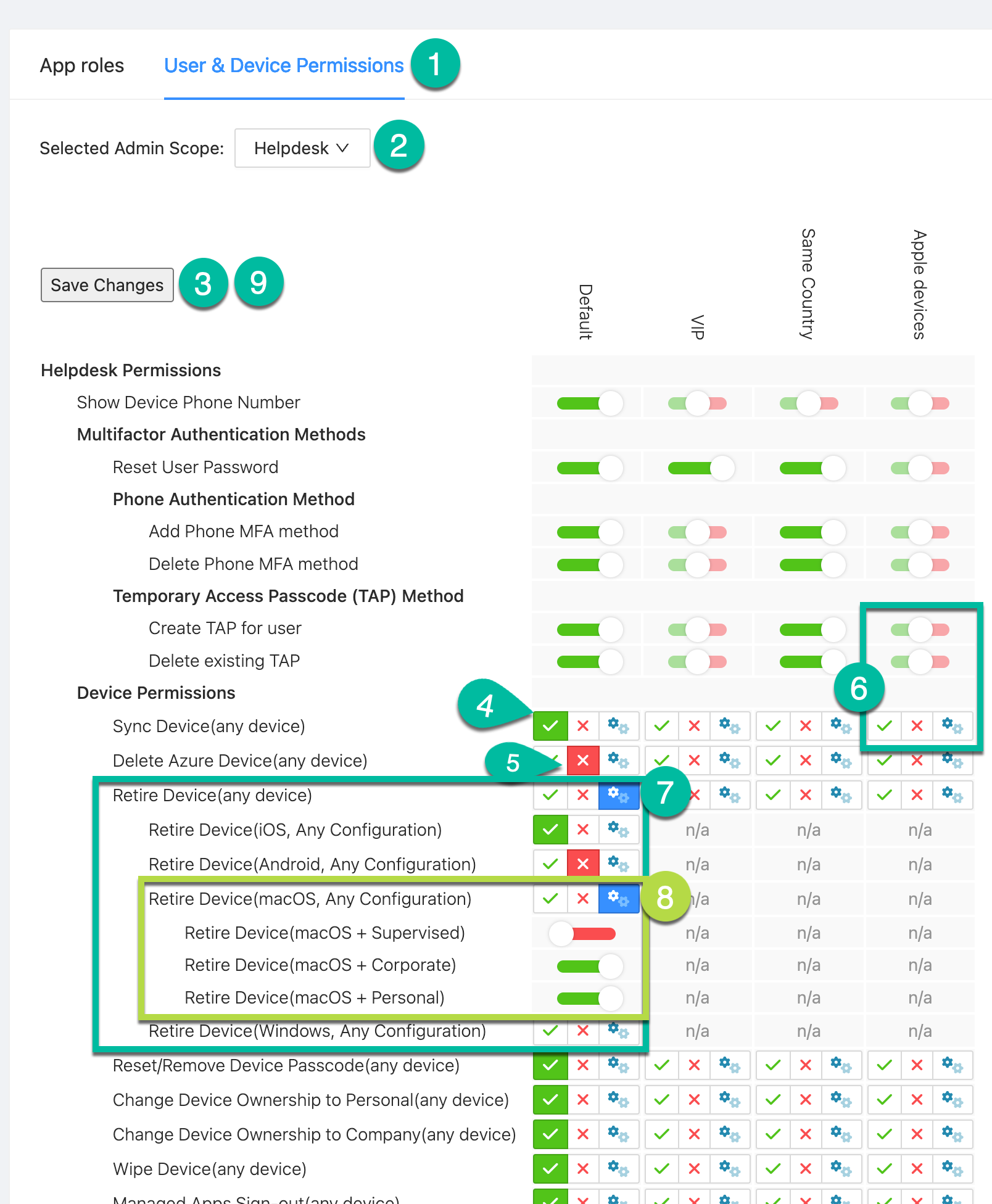
User & Device Permissions follow the same principle as the App roles but provide additional granularity.

image.png

  1. Switch to the User & Device Permissions tab
  2. Select the Admin Scope you want to view/edit the permission assignment
  3. Use the Edit button to switch to the editing view
  4. A green slider means that the permission is assigned.

    (image.png or image.png)

  5. A red slider means that the permission is un-assigned.

    (image.pngor image.png)

  6. A slider is also considered un-assigned/unset if the slider is centered.

    (image.png or image.png)

  7. Device actions have an additional Custom-setting that allows for additional granularity. The base setting allows the assignment and un-assignment of the device action for "(any device)". Selecting Custom will enable 3 extra rows. There, you can assign/un-assign the permission based on the device's operating system (e.g. Allow retirement for iOS devices but prohibit the retirement of Android devices) for a given Admin Scope and End User Scope.
  8. When using the Custom setting in a granular setting (like "MacOS, Any Configuration"), you can assign permissions even more granular based on the device's configuration. The three options are Supervised, corporate-owned devices, and personal-owned devices.
  9. Use the Save Changes button to persist your modifications.